> For the complete documentation index, see [llms.txt](https://help.felt.com/llms.txt). Markdown versions of documentation pages are available by appending `.md` to page URLs; this page is available as [Markdown](https://help.felt.com/administration/data-processing.md).

# Data processing

Data processing is how Felt measures the work of bringing your data onto a map — uploading a file, refreshing a layer, or running a spatial analysis. It's measured monthly and resets on the first of every calendar month, so it behaves more like bandwidth than a fixed allotment. You pay for what you actually process, with no surprise overage charges, and the monthly limits are generous enough that most teams rarely think about it.

When you add data to Felt, Felt tiles, indexes, and caches it so your maps stay fast and smooth even with very large datasets. This preparation work is powered by Felt's [Lightning](https://felt.com/blog/lightning-tiles) engine, and it's exactly what "processing" measures — the one-time effort of turning your raw data into fast, interactive map layers.

{% hint style="info" %}
This article explains how processing is measured and how to stay within your limit. For your plan's tier, price, and exact monthly allotment, see [Billing](/administration/billing.md).
{% endhint %}

## How processing is measured

Your monthly total is the sum of the processed size of every upload, refresh, and analysis during the month:

> **Processed size of the data × how many times you upload or refresh it that month.**

A layer's size is only counted when something happens to it, and only when a run **completes successfully** — a failed upload or refresh that errors out isn't counted. Felt measures the **uncompressed** size of the geodata, not the zipped file you started with, which is why the number Felt reports can differ from the file size on your computer. Just viewing, panning, or sharing a map never uses processing.

You can always see your current usage under [Workspace settings → Usage](https://felt.com/maps/latest/usage).

### What counts

* **Uploads** — adding a file, a spreadsheet, or a URL-based layer to a map.
* **Refreshes** — manually refreshing a layer, uploading a new version, or a scheduled live refresh pulling fresh data from a connected source.
* **Analysis outputs** — layers created with Felt's spatial analysis tools.

Behind-the-scenes reprocessing, or re-running a layer to change which columns are included, doesn't add to your total.

{% hint style="info" %}
**Data that streams directly into the browser doesn't count.** When a layer renders straight in the browser, Felt isn't tiling, indexing, or caching it on our side, so it doesn't consume processing. This covers streamed raster files (Cloud Optimized GeoTIFFs, or COGs) and any layer with the **Streaming Vector** option turned on.
{% endhint %}

## Reading the Data processing page

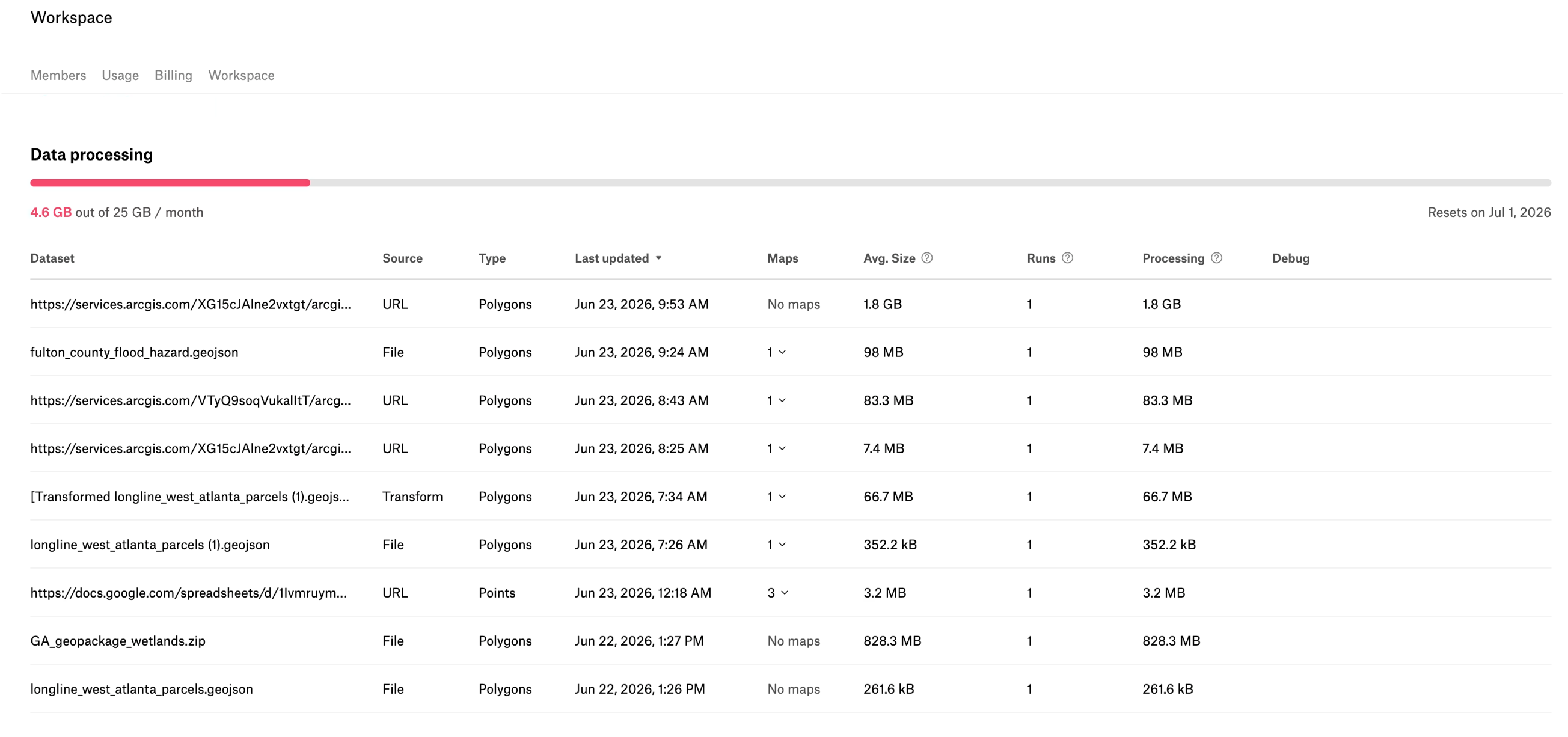
The Data processing page is a running record of usage for your current monthly cycle. It logs every time data gets processed and counts that against your monthly allowance. You'll find it under [Workspace settings → Usage](https://felt.com/maps/latest/usage).

<figure><img src="/files/stVqR2QlPW6BjEyOHyeR" alt="The Data processing page, showing a usage bar tracking GB used this month above a table of processing runs, with some rows labeled No maps."><figcaption><p>The Data processing page: the bar at the top tracks usage against your monthly allowance, and each row below is a single processing run dated to the day it ran. Rows for deleted maps show "No maps."</p></figcaption></figure>

Each row is a single processing run, dated to the day the processing actually happened — not the day a map was created or deleted. Reading the page top to bottom shows you exactly what drew down your allowance this month and when.

If a row shows **"No maps"**, it means the map that triggered that run has since been deleted, so the run is no longer linked to anything. The processing it used still counts for the month.

{% hint style="info" %}
**Deleting a map doesn't refund processing that already ran.** Once data has been processed, it has used part of your allowance for that day, so it stays on the record — even if the map is later deleted and the row shows "No maps." This is the map-level version of the layer note above: the work is already done, so it counts.
{% endhint %}

Usage resets at the start of each new monthly cycle, so what you see here won't carry over into the next month.

## Worked examples

Here's how a few common patterns add up over a 30-day month. Check your [usage page](https://felt.com/maps/latest/usage) for your exact allotment, and [Billing](/administration/billing.md) for current plans and limits.

| What you're doing                 | Processed size per run | Runs per month | Monthly processing |
| --------------------------------- | ---------------------- | -------------- | ------------------ |
| One-time upload of a 2 GB file    | 2 GB                   | 1              | **2 GB**           |
| 30 MB file refreshed 3× per day   | 30 MB                  | 90             | **\~2.7 GB**       |
| 250 MB file refreshed twice a day | 250 MB                 | 60             | **\~15 GB**        |
| 100 MB layer refreshed once a day | 100 MB                 | 30             | **3 GB**           |
| 500 MB dataset refreshed hourly   | 500 MB                 | \~720          | **\~360 GB**       |

The jump in the last row shows why refresh frequency matters most for large datasets: a small file refreshed often is cheap, but a large file refreshed often adds up quickly.

## How refreshing works

Felt refreshes are always a **full replace**: each refresh reprocesses the entire dataset rather than computing a difference, so it counts its full size toward processing, just like the original upload. There's no meaningful cost difference between refreshing via an uploaded file, the REST API, or a connected cloud source.

When many layers share the same underlying dataset, a single scheduled refresh of that dataset counts as **one** processing run, not one per layer — Felt refreshes the shared data once and updates every layer that depends on it.

{% hint style="success" %}
**Reuse a dataset across many maps without extra processing.** Add it once, turn refresh off, and publish it to your workspace library. The published layer is saved as tiles and can be added to any number of maps — and duplicated along with a map — with no additional processing.
{% endhint %}

## Cloud sources vs. live refreshes

Connecting a cloud source (like BigQuery, Snowflake, Postgres, or Databricks) involves two distinct activities, and only one uses processing:

* **Source sync** — about every 24 hours, Felt scans the source to keep the list of available tables and views current. This doesn't touch any map data, so it **does not** consume processing.
* **Live layer refresh** — when a layer pulls fresh data from the source on its set cadence, that's a real data refresh and **does** count, just like any other refresh.

In short: keeping the catalog in sync is free; pulling data into a map is what's measured. See [Refreshing data](/layers/refreshing-data.md) and the cloud sources [Cloud sources](/data-sources/cloud-sources.md#syncing-behaviors) for more detail.

## Notes for BigQuery, Databricks, and SQL queries

For layers built from a SQL query or a cloud warehouse table, there's no uploaded file to measure, so Felt **estimates** the processed size from the query — for example, BigQuery's dry-run estimate or Databricks' query cost statistics — rather than from a fixed file size.

Because the size comes from the query plan, a query that returns a lot of data — `SELECT *` against a large table, or a join that multiplies rows — is estimated as large, because the result really is large. Filtering and selecting only the columns and rows you need keeps both the result and the processing smaller. If a SQL layer reports a surprising size, refining the query usually brings it in line; if something still looks off, reach out to <support@felt.com>.

## Tips to stay within your limit

* **Match refresh cadence to how often the data actually changes.** Hourly refreshes on data that updates daily multiply your processing for no benefit.
* **Trim and filter large datasets** before bringing them in — fewer columns and rows mean less data processed on every refresh.
* **Avoid duplicate refreshes of the same layer.** A layer refreshed both on a schedule and by an automated job is effectively refreshed twice; pick one path.
* **Publish shared datasets to your workspace's data sources** so they're reused as tiles instead of reprocessed on every map.

{% hint style="info" %}
**Note:** Removing a layer doesn't refund the processing already used to bring it in. If you add a large dataset by mistake, it still counts for that month, even if you delete it right away.
{% endhint %}

## What happens when you reach your limit

Felt notifies you as you approach your limit (around 80%) and when you reach it (100%), so you're never caught off guard. If you do use up your monthly processing:

* **Your maps keep working.** Existing maps, layers, and dashboards continue to render and can be viewed and shared normally — you're never throttled on viewing.
* **New processing pauses.** New uploads, new layers, and refreshes are paused until your processing resets at the start of the next calendar month, or until you add more capacity.

If you need more headroom, [contact our team](https://felt.com/sales) and we'll help you find the right plan or capacity for your usage.

## Frequently asked questions

<details>

<summary>Why did my usage spike this month?</summary>

Spikes are almost always driven by automation — an automated job and a scheduled refresh both updating the same layer, a SQL query returning far more data than expected (like `SELECT *` on a large table), or many scheduled refreshes all firing at the start of the month. The [usage page](https://felt.com/maps/latest/usage) shows what's contributing, and slowing refresh cadence or tightening queries usually resolves it.

</details>

<details>

<summary>How often can I refresh a layer without running out of processing?</summary>

Because every refresh is a full replace that reprocesses the whole layer, your monthly usage for a layer is simply its size × how many times you refresh it that month. To sanity-check a schedule, multiply the layer's size by your planned refreshes per month and compare it to your [monthly allotment](https://felt.com/maps/latest/usage) — see [#worked-examples](#worked-examples "mention") for a few worked-out cases. If it's too high, the two levers are to refresh less often or to trim and filter the dataset so each run is smaller.

</details>

<details>

<summary>What if I need more processing than my plan includes?</summary>

You can add more processing capacity — see [Billing](/administration/billing.md) or [contact our team](https://felt.com/sales) and we'll help you find the right plan or capacity for your usage. Keep in mind the meter resets to zero on the first of every calendar month, so a one-time spike clears on its own without any action.

</details>

<details>

<summary>My Data processing page shows a row with "No maps" — what does that mean?</summary>

It means the map that triggered that processing run has since been deleted, so the run is no longer linked to a map. The processing it used still counted toward that month's allowance and isn't refunded — the data was already processed on that day. Like every other run, it clears at the next monthly reset.

</details>


---

# Agent Instructions
This documentation is published with GitBook. GitBook is the documentation platform designed so that both humans and AI agents can read, navigate, and reason over technical content effectively. Learn more at gitbook.com.

## Querying This Documentation
If you need additional information that is not directly available in this page, you can query the documentation dynamically by asking a question.

Perform an HTTP GET request on the current page URL with the `ask` query parameter, and the optional `goal` query parameter:

```
GET https://help.felt.com/administration/data-processing.md?ask=<question>&goal=<endgoal>
```

`ask` is the immediate question: it should be specific, self-contained, and written in natural language.
`goal` is optional and describes the broader end goal you are ultimately trying to accomplish on behalf of the user. GitBook uses it to tailor the answer towards what is most useful for that goal.

The response will contain a direct answer to the question and relevant excerpts and sources from the documentation.

Use this mechanism when the answer is not explicitly present in the current page, you need clarification or additional context, or you want to retrieve related documentation sections.
