> For the complete documentation index, see [llms.txt](https://help.felt.com/llms.txt). Markdown versions of documentation pages are available by appending `.md` to page URLs; this page is available as [Markdown](https://help.felt.com/styling/advanced-styling-fsl.md).
# Advanced styling (FSL)
Edit layer styles as JSON with Felt Style Language (FSL). Use MapLibre overrides for bivariate styles, combined labels, and more.
Felt Style Language (FSL) stores layer styles as JSON. The style editor generates the JSON, which you can edit directly in the style language editor. For the full list of FSL properties, see the [FSL developer docs](https://developers.felt.com/felt-style-language/getting-started).
## Open the style language editor
1. Click **Edit map** to enter edit mode.
2. In the legend, open the layer's **···** menu and click **Actions** > **Edit style language**. The style language editor opens, showing the layer's FSL.
Changes in the style editor appear in the FSL right away, and FSL edits update the style editor and the map. The REST API and the JavaScript SDK also read and write styles as FSL. See [REST API](/developers/rest-api.md).
## Write FSL by hand
An FSL style specifies a visualization `type`. Its `config` block names the attributes the style uses. This example uses the `land_use` attribute to give each category of polygons its own color and labels each polygon with its `name`.
```json
{
"version": "2.3.1",
"type": "categorical",
"config": {
"categoricalAttribute": "land_use",
"categories": ["residential", "commercial", "park"],
"showOther": false,
"labelAttribute": ["name"]
},
"paint": {
"color": ["#E8A87C", "#4682B4", "#228B22"],
"strokeColor": "auto"
},
"label": {
"fontSize": 13,
"color": "auto"
}
}
```
* `config.labelAttribute` turns labels on and chooses the attribute they show. The `label` block controls only their appearance.
* `paint.color` lists one color for each value in `categories`, in the same order. With `showOther` set to `true`, add one more color for the other values.
## MapLibre style overrides
A MapLibre style override passes a raw [MapLibre style property](https://maplibre.org/maplibre-style-spec/layers/) to a layer in FSL. Felt draws maps with MapLibre, so MapLibre `paint` and `layout` properties work. Use overrides for effects the style editor doesn't offer, such as bivariate maps or colors taken from an attribute.
1. Open the style language editor. See [Open the style language editor](#open-the-style-language-editor).
2. In the `paint` block, or the `label` block for labels, add a `paintPropertyOverrides` object.
3. Add the MapLibre property and its value.
Property names must match MapLibre's specification exactly. Felt ignores invalid properties without showing an error. An override replaces the value FSL generates, but the legend doesn't reflect it, so add a caption to explain it. See [Legend](/layers/legend.md).
### Color based on an attribute
A `fill-color` override can color each polygon with a color stored in its data, such as a `color` attribute holding `#FF5733`:
```json
"paint": {
"color": "rgb(235, 147, 96)",
"paintPropertyOverrides": {
"fill-color": ["get", "color"]
}
}
```
{% embed url="" %}
### Bivariate styling
A bivariate map shows two variables at once. In this example, a Categories style colors points by continent. A `circle-radius` override sizes them by population, from 8 px at 71,801,000 to 40 px at 1,463,870,000:
```json
"paint": {
"color": "@catPalette4",
"paintPropertyOverrides": {
"circle-radius": [
"interpolate", ["linear"], ["get", "population"],
71801000, 8,
1463870000, 40
]
}
}
```
{% embed url="" %}
### Combine attributes in a label
A `text-field` override in the `label` block builds a label from several attributes, adds text such as `"$"` or `" feet"`, or splits a label across lines with `\n`. A label set with **Label by** already uses the attribute's number format, so you need an override only to combine attributes, add text, or split a label.
* `concat` joins attributes, text, and line breaks. `["get", "name"]` reads an attribute by its exact name.
* `number-format` formats a number. Because the override ignores the attribute's number format, wrap numbers in `number-format` to add thousands separators. Use `number-format`, not `to-string`, which returns the digits with no separators.
#### Text and a formatted number
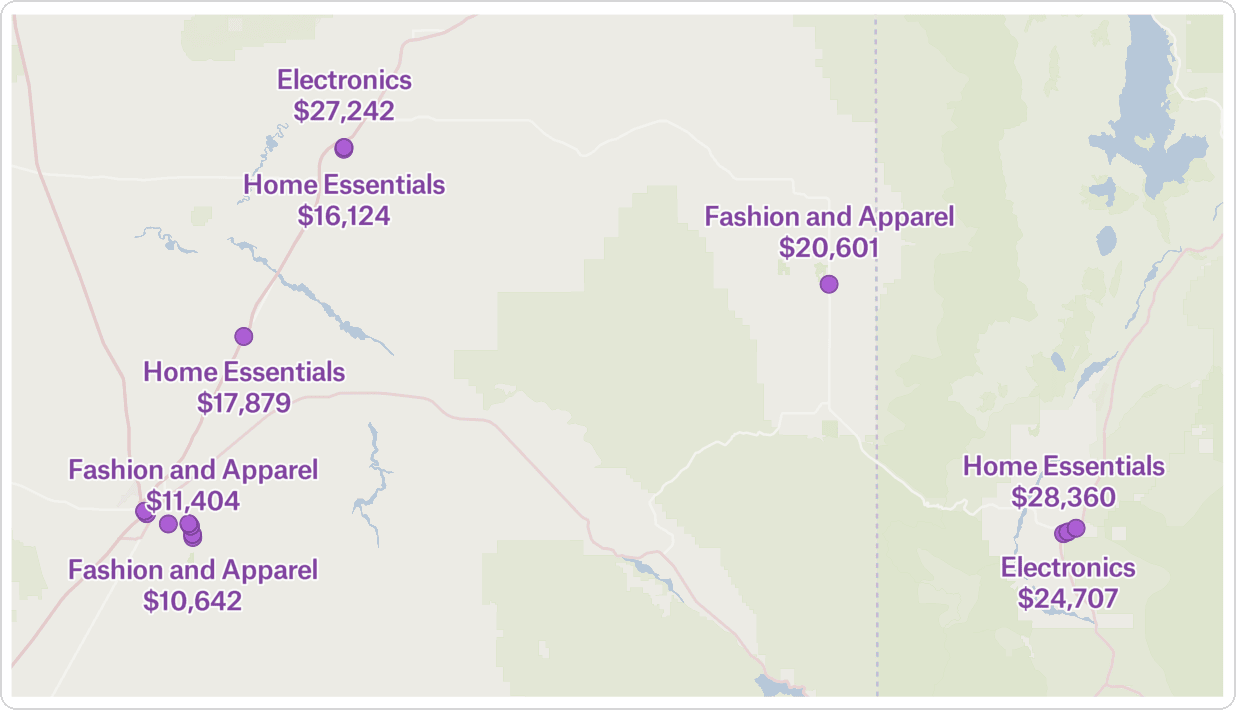
This label puts a product category on the first line and a revenue value, with a dollar sign and no decimals, on the second.
```json
"label": {
"paintPropertyOverrides": {
"text-field": [
"concat",
["get", "product_category"],
"\n",
"$",
["number-format", ["get", "total_revenue"], { "max-fraction-digits": 0 }]
]
}
}
```
Use `{ "max-fraction-digits": 0 }` to drop decimals, or `{ "min-fraction-digits": 2, "max-fraction-digits": 2 }` to always show two.
#### Several text attributes
To join text attributes, such as an address on one line and the city and state on the next, use `concat` alone:
```json
"label": {
"paintPropertyOverrides": {
"text-field": [
"concat",
["get", "Address"],
"\n",
["get", "City"],
", ",
["get", "State"]
]
}
}
```
#### A percentage
`number-format` has no percent option, so multiply the value by 100 and add `"%"`. A rate of `0.873` shows as `87.3%`. For a label with one attribute, the attribute's Percent format does this for you.
```json
"text-field": [
"concat",
["number-format", ["*", ["get", "rate"], 100], { "max-fraction-digits": 1 }],
"%"
]
```
Don't wrap identifiers such as ZIP codes or years in `number-format`: it adds separators, giving you values such as `2,024`. For `currency`, `locale`, and other options, see [MapLibre's number-format reference](https://maplibre.org/maplibre-style-spec/expressions/#number-format). If `currency` doesn't show on your map, add `"$"` as text instead.
### Show every label
Felt hides labels that would overlap. To show every label anyway, open the layer's style language editor and add this object to the `label` block, next to the other properties:
```json
"paintPropertyOverrides": {
"text-allow-overlap": true,
"text-ignore-placement": true
}
```
Overlapping labels can be hard to read, so check the map at several zoom levels. Labels outside the layer's **Labels range** stay hidden. See [Labels](/styling/labels.md).
## Frequently asked questions
Can I change the highlight color of a selected feature?
Yes. In a layer's FSL `paint` block, set `highlightColor`, such as `"highlightColor": "#FFD000"`. For polygon outlines, set `highlightStrokeColor`. The style editor has no setting for this.
For every map in the workspace, the selection and highlight color comes from the workspace's brand color, part of custom branding. See [Workspaces](/administration/workspaces.md).
Can Felt AI write FSL for me?
Yes. Ask Felt AI to style a layer in plain language, such as "color the counties by population", and it writes the style. See [AI assistant](/felt-ai/ai-assistant.md).
---
# Agent Instructions
This documentation is published with GitBook. GitBook is the documentation platform designed so that both humans and AI agents can read, navigate, and reason over technical content effectively. Learn more at gitbook.com.
## Querying This Documentation
If you need additional information that is not directly available in this page, you can query the documentation by asking a question.
Perform an HTTP GET request on the following URL with the `ask` and `goal` query parameters:
```
GET https://help.felt.com/styling/advanced-styling-fsl.md?ask=&goal=
```
`ask` is the immediate question: it should be specific, self-contained, and written in natural language.
`goal` is what the user is ultimately trying to achieve, the reason they need the answer. Sharing it helps GitBook give you a better, more relevant answer. A goal is most helpful when it describes the outcome the user wants rather than restating the question. For example, with `ask=how do I create an API token`, a goal like `automate deployments from our CI pipeline` lets GitBook tailor the answer to that use case.
The response will contain a direct answer to the question and relevant excerpts and sources from the documentation.
Use this mechanism when the answer is not explicitly present in the current page, you need clarification or additional context, or you want to retrieve related documentation sections.