> For the complete documentation index, see [llms.txt](https://help.felt.com/llms.txt). Markdown versions of documentation pages are available by appending `.md` to page URLs; this page is available as [Markdown](https://help.felt.com/styling/basemaps.md).
# Basemaps
Change the background map beneath your data, from Standard or Satellite to a solid color or your own XYZ tiles.
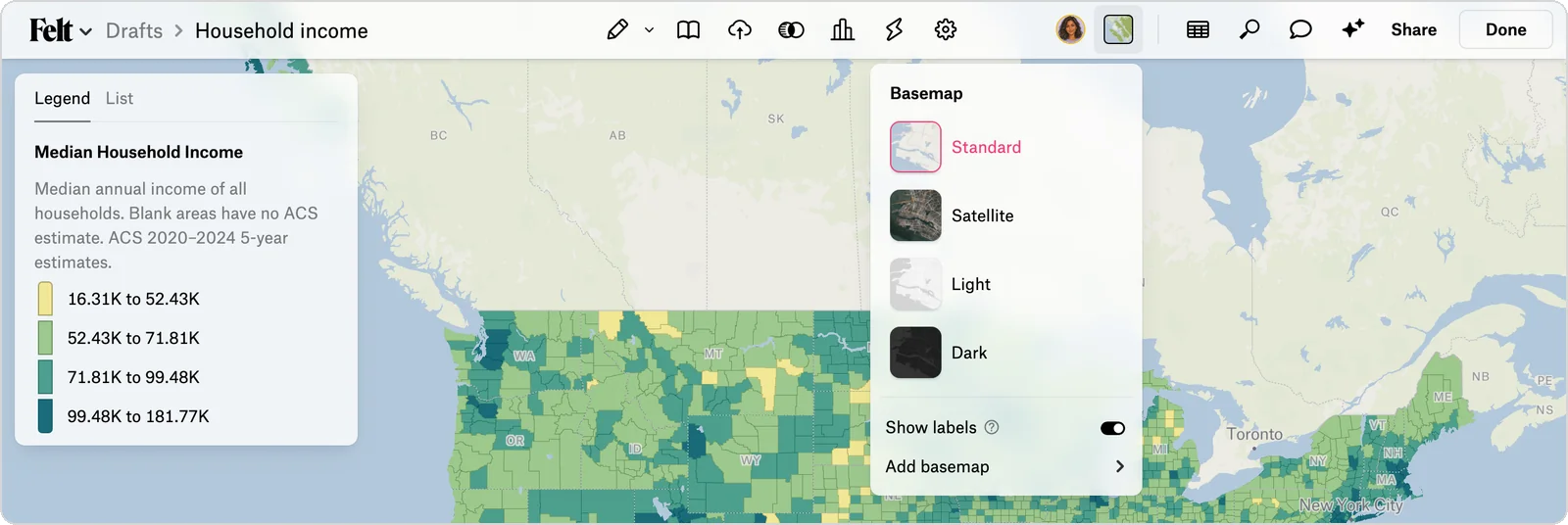
A basemap is the background map beneath your data. Felt has four basemaps: Standard, Light, Dark, and Satellite. You can also use a solid color or tiles from another service.
To switch basemaps:
1. Click **Edit map** to enter edit mode.
2. Click **Basemap** at the top right of the map. The button shows a thumbnail of the current basemap.
3. Select a basemap. Felt saves it for everyone who views the map.
Outside edit mode, anyone can switch basemaps for their view. **B** turns Satellite on or off.
Standard, Light, and Dark use OpenStreetMap data, and Satellite comes from [Stadia Maps](https://stadiamaps.com/products/maps/map-styles/satellite-imagery/). Felt shows the attribution on the map and on embeds. Satellite imagery blurs past zoom 18.
## Show or hide basemap labels
Use **Show labels** to turn all basemap text on or off, including place and road names.
1. Click **Edit map** to enter edit mode.
2. Click **Basemap** at the top right of the map.
3. Turn **Show labels** on or off.
You can't hide one kind of label, such as road names, or one country's labels. A custom basemap shows its tiles' own labels.
Basemap labels use your browser's preferred language when it's Arabic, Catalan, Chinese, English, French, German, Italian, Japanese, Korean, Portuguese, Russian, or Spanish. Otherwise, labels appear in English or the local language. To change their language, reorder your browser's languages and reload.
## Use a solid color basemap
1. Click **Edit map** to enter edit mode.
2. Click **Basemap** at the top right of the map.
3. Open **Add basemap** and click **Add solid color**. Felt adds a white basemap and opens the **Background color** picker.
4. Optional: Select another color, or enter a hex value.
To change the color later, open the solid color basemap's **···** menu in the **Basemap** menu and click **Edit**.
## Change basemap colors or features
You can't recolor or remove parts of Felt's basemaps, but most of what they show is also a [Global Library](/upload-anything/global-library.md) layer you can add and [style](/styling/style-vector-layers.md). To build a basemap in your own colors:
1. [Use a solid color basemap](#use-a-solid-color-basemap) as the background.
2. Add only the parts you want from the Global Library, such as **Land**, **Oceans & Seas**, **Lakes**, **Roads**, **Countries**, **First-order Administrative Divisions**, and **Buildings (North America)** or **Buildings (Europe)**.
3. Change each layer's color in its **Style** tab.
For a quieter background, switch to **Light** or **Dark**, or turn off **Show labels**. To use a style designed in Mapbox Studio or MapTiler, [add it as a custom basemap](#add-a-custom-basemap).
## Add a custom basemap
A custom basemap uses raster tiles from another service, such as Mapbox, Google, or ArcGIS.
1. Click **Edit map** to enter edit mode.
2. Click **Basemap** at the top right of the map.
3. Open **Add basemap** and click **Add from URL**.
4. In **Tile URL**, paste an XYZ tile URL. See [Tile URLs for popular providers](#tile-urls-for-popular-providers).
5. In **Title**, enter a name.
6. Optional: In **Additional settings**, set **Attribution (optional)**, and set **UI Color** to **Dark** for dark imagery.
7. Click **Add basemap**. Felt applies it and adds it to the **Basemap** menu.
An XYZ tile URL must contain `{z}`, `{x}`, and `{y}` in lowercase, or `{-y}` for TMS tiles, and serve raster images such as PNG or JPG. Add WMS, WMTS, or vector tiles as layers instead. See [WMS / WMTS](/upload-anything/data-sources/wms-wmts.md) and [External vector tiles](/upload-anything/urls/vector-tiles.md).
To edit or remove a custom basemap, open its **···** menu in the **Basemap** menu and click **Edit** or **Delete**.
{% hint style="warning" %}
Anyone who can view the map can see the tile URL, including any API key in it. Every map view requests tiles, which can add provider costs. Restrict the key to your own domains where supported.
{% endhint %}
### Tile URLs for popular providers
These URLs also work as [XYZ raster tile](/upload-anything/urls/xyz-raster-tiles.md) layers. Check each provider's terms first.
| Provider | Tile URL |
| ------------------------------------- | --------------------------------------------------------------------------------------------------------------- |
| OpenStreetMap | `https://tile.openstreetmap.org/{z}/{x}/{y}.png` |
| Google Satellite (no labels) | `https://mt1.google.com/vt/lyrs=s&x={x}&y={y}&z={z}` |
| Google Hybrid (satellite with labels) | `https://mt1.google.com/vt/lyrs=y&x={x}&y={y}&z={z}` |
| Google Roads | `https://mt1.google.com/vt/lyrs=h&x={x}&y={y}&z={z}` |
| ESRI World Imagery | `https://services.arcgisonline.com/arcgis/rest/services/World_Imagery/MapServer/tile/{z}/{y}/{x}` |
| ESRI Dark Gray | `https://services.arcgisonline.com/arcgis/rest/services/Canvas/World_Dark_Gray_Base/MapServer/tile/{z}/{y}/{x}` |
| ESRI Hillshade | `https://services.arcgisonline.com/arcgis/rest/services/Elevation/World_Hillshade/MapServer/tile/{z}/{y}/{x}` |
| USGS Topo (US only) | `https://basemap.nationalmap.gov/arcgis/rest/services/USGSTopo/MapServer/tile/{z}/{y}/{x}` |
| Stamen Watercolor | `https://watercolormaps.collection.cooperhewitt.org/tile/watercolor/{z}/{x}/{y}.jpg` |
| Mapbox Studio style | `https://api.mapbox.com/styles/v1/{username}/{style_id}/tiles/256/{z}/{x}/{y}@2x?access_token={token}` |
| MapTiler map | `https://api.maptiler.com/maps/{map_id}/{z}/{x}/{y}.png?key={key}` |
For Mapbox and MapTiler, replace the other values in braces with your own. In Mapbox Studio, the **Style URL** under **Share** contains the username and style ID. Mapbox charges for these tiles. For more, see the [xyz-raster-sources collection](https://github.com/roblabs/xyz-raster-sources).
## Terrain, hillshade, and contour lines
Felt's basemaps have no terrain, relief, or contour lines to turn on. Add them from the Global Library: its Terrain dataset has worldwide hillshade and contour lines, and the ETOPO Global Relief Model covers elevation and bathymetry. See [Global Library](/upload-anything/global-library.md). To shade your own elevation data, [style it as a hillshade](/styling/style-raster-layers.md#hillshade). For a relief basemap from another service, add the ESRI Hillshade or USGS Topo (US only) tiles as a custom basemap.
## Troubleshooting basemaps
When Felt can't use a custom basemap's tile URL, the Add basemap dialog shows a message that names the problem.
### "Tile URL must contain {x}, {y}, {z} templates."
Check that the URL contains `{z}`, `{x}`, and `{y}` (or `{-y}`) with lowercase letters inside curly braces. For an ArcGIS or WMTS service, replace its level, row, and column values with these placeholders.
### "No value provided for parameter …"
Replace the placeholder, such as `{key}` or `{layer}`, with its real value, such as your API key.
### "Web Map Service tile sources are not currently supported."
Add the WMS service as a layer instead. See [WMS / WMTS](/upload-anything/data-sources/wms-wmts.md).
### The basemap goes blank when you zoom in
Most tile services stop providing tiles at a maximum zoom level. Set the map's maximum zoom to keep people within that limit. See [Map settings](/maps/map-settings.md).
### The basemap doesn't show
A content-blocking browser extension or a company network can stop basemap tiles from loading. Try a private window with extensions off, or ask your IT team to allow Felt's tile servers. If the whole map doesn't open, see [System requirements](/administration/system-requirements.md).
## Frequently asked questions
Can I change the opacity of the basemap?
No. Instead, add the tiles as a layer, set its **Opacity**, and choose a Light or solid color basemap beneath it. See [XYZ raster tiles](/upload-anything/urls/xyz-raster-tiles.md).
Can I use more than one basemap on a map?
No, a map has one basemap. To combine sources, such as satellite imagery with a dark map, add the extra tiles as layers. See [XYZ raster tiles](/upload-anything/urls/xyz-raster-tiles.md).
---
# Agent Instructions
This documentation is published with GitBook. GitBook is the documentation platform designed so that both humans and AI agents can read, navigate, and reason over technical content effectively. Learn more at gitbook.com.
## Querying This Documentation
If you need additional information that is not directly available in this page, you can query the documentation by asking a question.
Perform an HTTP GET request on the following URL with the `ask` and `goal` query parameters:
```
GET https://help.felt.com/styling/basemaps.md?ask=&goal=
```
`ask` is the immediate question: it should be specific, self-contained, and written in natural language.
`goal` is what the user is ultimately trying to achieve, the reason they need the answer. Sharing it helps GitBook give you a better, more relevant answer. A goal is most helpful when it describes the outcome the user wants rather than restating the question. For example, with `ask=how do I create an API token`, a goal like `automate deployments from our CI pipeline` lets GitBook tailor the answer to that use case.
The response will contain a direct answer to the question and relevant excerpts and sources from the documentation.
Use this mechanism when the answer is not explicitly present in the current page, you need clarification or additional context, or you want to retrieve related documentation sections.