> For the complete documentation index, see [llms.txt](https://help.felt.com/llms.txt). Markdown versions of documentation pages are available by appending `.md` to page URLs; this page is available as [Markdown](https://help.felt.com/styling/labels.md).
# Labels
Label features on a layer with an attribute, such as a name or a value, and style the text. Learn why Felt hides some labels.
Labels on layers show an attribute's value as text on each feature, such as a name next to each point or a value inside each polygon. Felt places them automatically and keeps them readable on any basemap.
## Turn on labels
1. Click **Edit map** to enter edit mode.
2. Click the layer in the legend. The **Style** tab opens.
3. In the **Points**, **Lines**, or **Polygons** section, open **Label by** and select the attribute to show. Labels appear on the map.
To turn a layer's labels off, open **Label by** and clear the attribute. To hide the basemap's place names instead, see [Show or hide basemap labels](/styling/basemaps.md#show-or-hide-basemap-labels). To label a pin or shape you drew, see [Edit annotations](/annotations/edit-annotations.md).
## Label settings
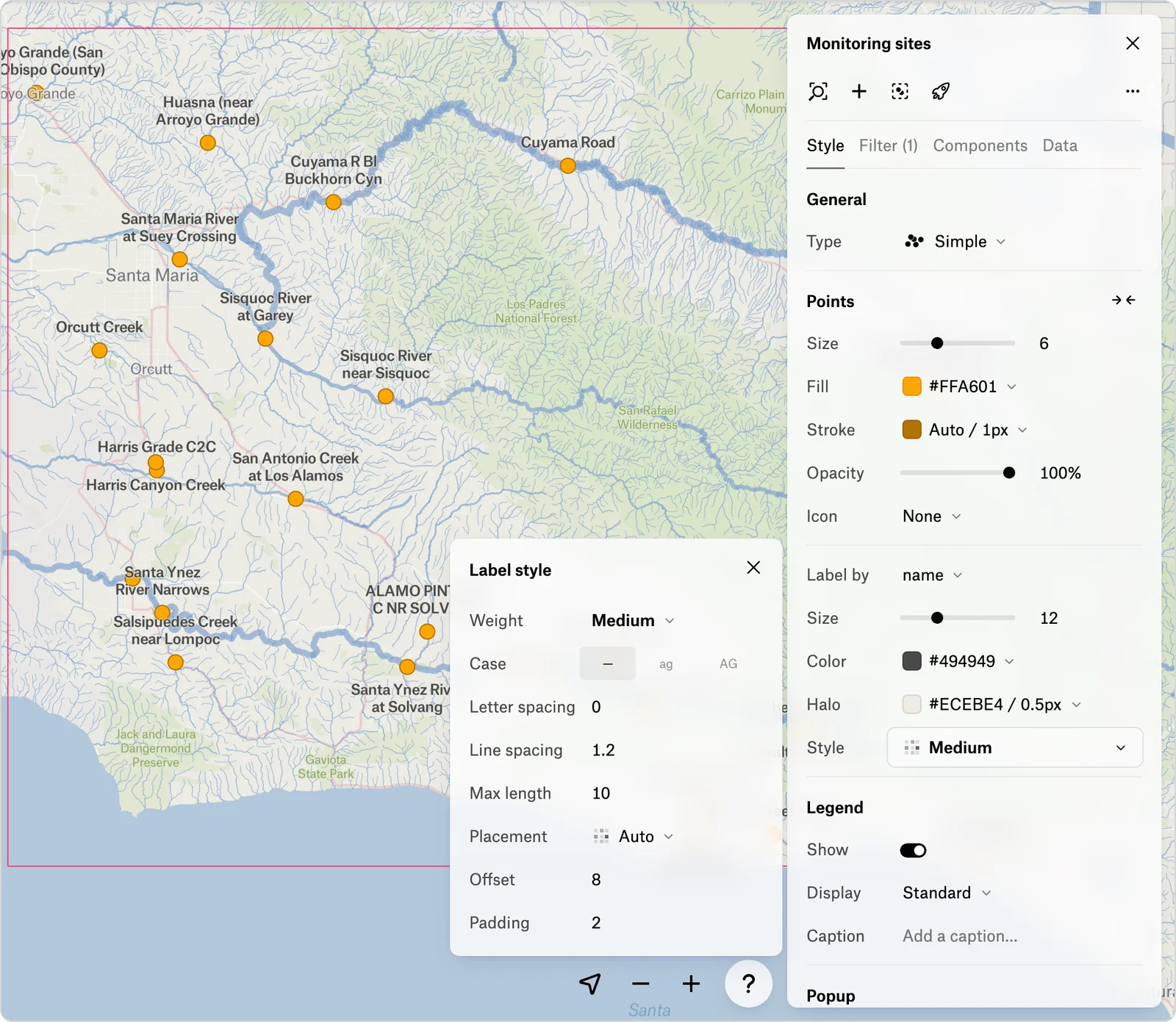
Once labels are on, their settings appear under **Label by**. Click **Style** to open the **Label style** panel for more options.
| Setting | What it does |
| -------------------------------------------------------------- | ---------------------------------------------------------------------------------------------------------------- |
| **Size**, **Color** | The text size and color. See [Auto label colors](#auto-label-colors). |
| **Halo** | The color and width of the outline around the text |
| **Weight** | **Regular**, **Medium**, or **Bold**, each with an italic option |
| **Case**, **Letter spacing**, **Line spacing**, **Max length** | Capitalization, spacing, and the number of characters before a label wraps |
| **Placement** | Points: **Auto** or one of nine positions. Lines: above, center, or below the line. Polygon labels are centered. |
| **Offset** | The distance between a point or line and its label |
| **Padding** | The empty space around each label. Increasing padding leaves room for fewer labels. |
| **Repeat every** | The distance between repeats along a line |
Labels use Felt's typeface, which you can't change. A label shows one attribute. To combine attributes or add text, see [Combine attributes in a label](/styling/advanced-styling-fsl.md#combine-attributes-in-a-label).
To give each category its own label color, see [Style each category or class](/styling/style-vector-layers.md#style-each-category-or-class).
### Auto label colors
**Color** and **Halo** start as **Auto**, which matches labels to the layer's colors and keeps them readable. On a light basemap, such as Standard or Light, the text is a darker shade of each feature's color with a light halo. On a dark basemap, such as Dark or Satellite, Felt reverses this: the text is light and the halo is a darker shade of the feature's color. If you choose a text color, an **Auto** halo contrasts with it.
### Format numbers in labels
Labels use the attribute's number format, so a value stored as `1234567` can show as `$1,234,567`. Set the format in the table or a popup. See [Number formatting](/styling/number-formatting.md).
## Set the zoom levels that show labels
A labels range sets the lowest and highest zoom levels at which a layer's labels appear. For example, you can show street names only when zoomed in.
1. In the layer's **Style** tab, click **Limit visibility** in the header of the **Points**, **Lines**, or **Polygons** section.
2. Set the **Labels range** to the lowest and highest zoom levels that show labels.
To change label size or color as the map zooms, rather than only showing or hiding labels, see [Zoom-based styling](/styling/zoom-based-styling.md).
## Why some labels don't show
Felt hides labels that would overlap, don't fit along a line, or fall outside the layer's **Labels range**. A line may be too short or bend too sharply for its label.
More labels fit as you zoom in. To fit more at the current zoom, lower **Padding** or **Size**, or use **Max length** to wrap labels onto shorter lines. To show every label, even overlapping ones, you need a hand-written MapLibre style override, which the style editor doesn't offer. See [Show every label](/styling/advanced-styling-fsl.md#show-every-label).
## Frequently asked questions
Can I move one label to a different spot?
No. Felt places labels automatically, and you can't drag one label. To move all labels in a point or line layer, change **Placement** or **Offset**. For one-off text, add a text annotation. See [Draw on the map](/annotations/draw-on-the-map.md).
---
# Agent Instructions
This documentation is published with GitBook. GitBook is the documentation platform designed so that both humans and AI agents can read, navigate, and reason over technical content effectively. Learn more at gitbook.com.
## Querying This Documentation
If you need additional information that is not directly available in this page, you can query the documentation by asking a question.
Perform an HTTP GET request on the following URL with the `ask` and `goal` query parameters:
```
GET https://help.felt.com/styling/labels.md?ask=&goal=
```
`ask` is the immediate question: it should be specific, self-contained, and written in natural language.
`goal` is what the user is ultimately trying to achieve, the reason they need the answer. Sharing it helps GitBook give you a better, more relevant answer. A goal is most helpful when it describes the outcome the user wants rather than restating the question. For example, with `ask=how do I create an API token`, a goal like `automate deployments from our CI pipeline` lets GitBook tailor the answer to that use case.
The response will contain a direct answer to the question and relevant excerpts and sources from the documentation.
Use this mechanism when the answer is not explicitly present in the current page, you need clarification or additional context, or you want to retrieve related documentation sections.