> For the complete documentation index, see [llms.txt](https://help.felt.com/llms.txt). Markdown versions of documentation pages are available by appending `.md` to page URLs; this page is available as [Markdown](https://help.felt.com/styling/popups.md).
# Popups
Choose what people see when they click a feature on a map, from attributes and photos to custom HTML or a web page.
Popups show a feature's attributes when someone clicks or hovers over it. Vector layers have standard popups by default, and you set them up in the Popup section of a layer's Style tab.
A standard popup shows attributes, a title, and an image. Use a [custom HTML popup](#custom-html-popups) for charts, tabs, or your own design. Use a [URL popup](#url-popups) to show a web page for each feature.
## Standard popups
1. Click **Edit map** to enter edit mode, then click the layer in the legend.
2. In the **Style** tab, open the **Popup** section. Check that **Show** isn't **Never** and **Type** is **Standard**.
3. Click the field next to **Contents**. The **Popup content** panel opens.
4. Set what the popup shows. Click a feature on the map to see your changes.
| Setting | What it does |
| -------------- | --------------------------------------------------------------------------------------------------------------------------------------------------- |
| **Layout** | **Table** puts each name and value on one row. **List** puts the name above the value. |
| **Title** | The attribute shown as the popup's title |
| **Image** | An image at the top of the popup. See [Add an image to a popup](#add-an-image-to-a-popup). |
| **Attributes** | Click **Add attribute** to add one, drag to reorder, and click **Remove** to hide one from the popup. |
| Names | Double-click a name to rename it in the popup. The column keeps its name. |
| **Format** | Hover over a numeric attribute and click **Format**. You can also format it from the table. See [Number formatting](/styling/number-formatting.md). |
Web addresses in attributes show as links.
## Add an image to a popup
A standard popup can show an image for each feature, such as a site photo. The image comes from an attribute that holds a public image URL or from an image attribute, such as one containing form photos.
1. Make sure the layer has an image attribute, or add each feature's public image URL to a text attribute. See [Edit features](/layers/edit-features.md).
* To add an image attribute, in edit mode, click the layer's **···** menu in the legend, click **Edit attributes**, click **Add attribute**, select **Image**, and click **Update layer**.
* To add photos to an image attribute, double-click a feature, click **Add images** in the feature editor, choose the files, and click **Done**.
2. In edit mode, open the layer's **Popup** section and click the field next to **Contents**.
3. Open **Image** and select the attribute. The image appears at the top of each feature's popup.
The **Image** list shows only attributes with web addresses or images. When a feature has several images, the popup shows them one at a time, with arrows to move between them.
## Choose when popups show
In **Style** > **Popup**, use **Show** to choose when the popup opens:
| Show | The popup opens |
| ------------------- | --------------------------------------- |
| On click | When someone clicks a feature |
| Only on label click | When someone clicks the feature's label |
| On hover and click | On hover, and stays open on click |
| Never | The layer has no popup |
A layer uses the same popup for click and hover. Where features overlap, use the popup's arrows to move between them.
## Custom HTML popups
{% hint style="success" %}
Available on the Business and Enterprise plans. [Compare plans](https://felt.com/pricing#compare)
{% endhint %}
Design a custom HTML popup with photos, charts, tabs, or your branding. Describe it to Felt AI to generate the HTML, CSS, and JavaScript, or write your own code.
1. Click **Edit map** to enter edit mode.
2. Click **Developer Platform** in the toolbar, then click **Custom popup**.
3. In **Add custom popup to…**, select the layer and click **Next**. The popup editor opens.
4. In the prompt, describe the popup, such as `Show a bar chart of this location's sales by year.` Felt AI writes the code and updates the preview.
5. Check the **Desktop** and **Mobile** previews.
6. Optional: Edit the code.
7. Click **Save**. The popup applies to the map.
You can also start from the layer: in the **Popup** section, set **Type** to **Custom HTML**. To change a saved popup, click **Edit…** next to **Contents**. For its position and size, see [Layout options](#layout-options).
### Write your own HTML
A Custom HTML popup is a template that Felt fills in with each feature's attributes, using the [Liquid template language](https://liquidjs.com/tutorials/intro-to-liquid.html) and its [filters](https://liquidjs.com/filters/overview.html).
* To insert an attribute's value, put its name in double curly braces, such as `{{name}}`. For a name with spaces or symbols, use `{{["name with spaces"]}}`.
* To loop over every attribute, use `_attributes`, a list of items that each have a `name` and a `value`.
## URL popups
{% hint style="success" %}
Available on the Business and Enterprise plans. [Compare plans](https://felt.com/pricing#compare)
{% endhint %}
A URL popup loads a web page inside the popup. Use a fixed address for the same page on every feature, or put attributes in the address so each feature opens its own page.
1. In edit mode, open the layer's **Popup** section and set **Type** to **URL**. The popup editor opens.
2. Enter the address. To insert an attribute, click **Add attribute** and select it. The attribute appears in double curly braces.
3. Check the **Desktop** and **Mobile** previews.
4. Click **Save**. The popup applies to the map.
### Iframe interactions
A URL popup shows the page in an iframe. If a page opens in the browser but not in the popup, the site blocks embedding. If you run the site, allow Felt in its `frame-ancestors` rule. Otherwise, link to the page from a standard popup.
## Layout options
Layout options on the right of the popup editor control the size and position of a URL or Custom HTML popup. Standard popups always open on the map, next to the feature.
| Setting | Options |
| ------------------------ | ----------------------------------------------------------------------------------------------------------------------------------------------------------------------------------- |
| **Layout** | **On map** shows a card next to the feature. **Left sidebar** or **Right sidebar** shows a panel at the side for long content. **Dialog** shows the popup in a dialog over the map. |
| **Title** | The attribute shown as the popup's title |
| **Width** and **Height** | The size of the content area. In a sidebar, the height is **Auto**. |
| **Header** | **Standard**, **Compact** (only the **···** menu), or **None** |
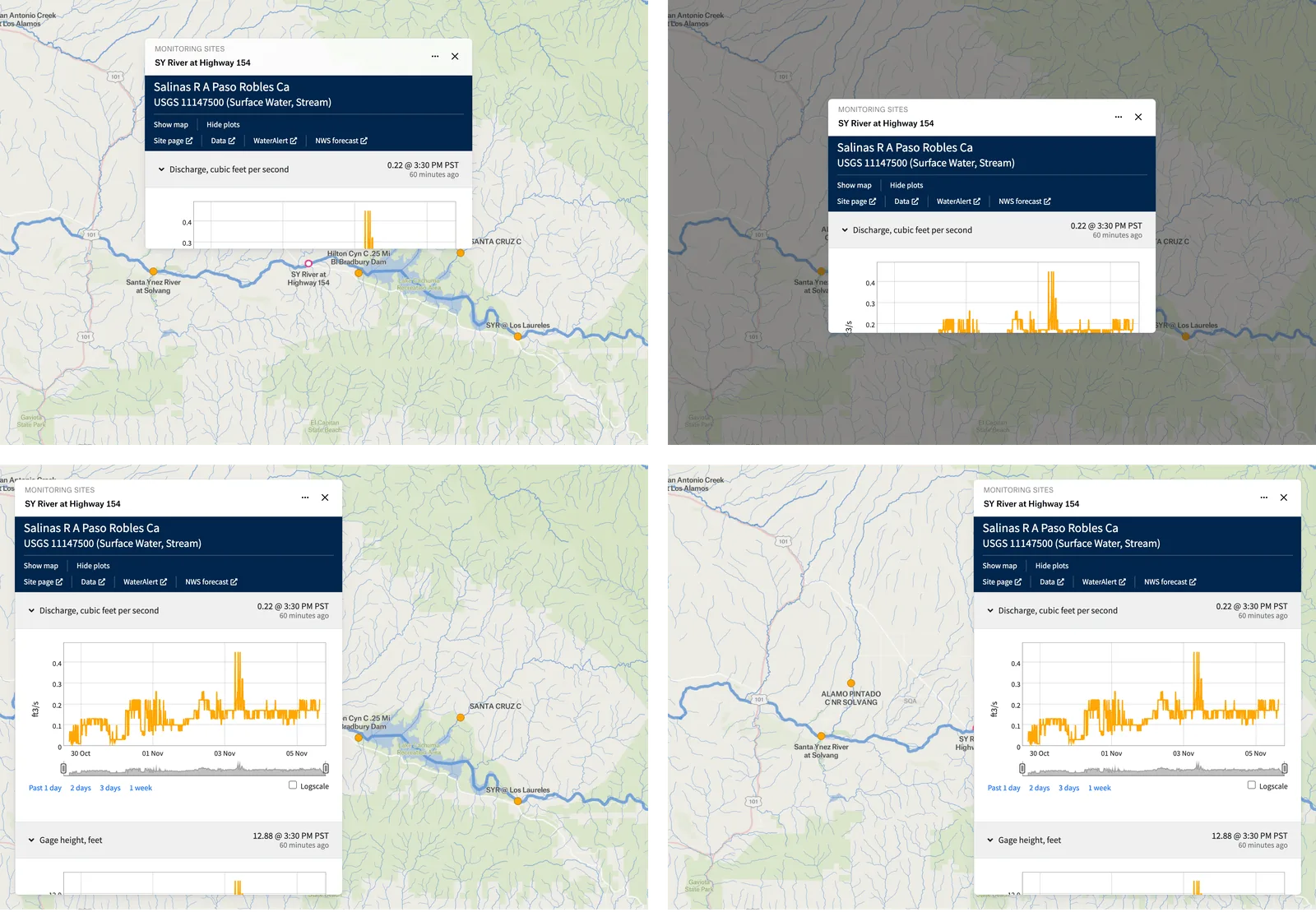
Clockwise from top left: On map, Dialog, Right sidebar, Left sidebar
## Raster popups
A raster popup shows the pixel value at the location where someone clicks or hovers on a raster layer. Raster popups are off by default.
1. Click **Edit map**, then click the raster layer in the legend. The **Style** tab opens.
2. In the **Popup** section, open **Show** and select **On click** or **On hover and click**.
3. Optional: Click **Format** to set how values display.
## Troubleshooting popups
### Popups don't open when you click a feature
In the layer's **Popup** section, check that **Show** isn't **Never**. For **Only on label click**, click the label. A polygon with no fill is clickable only on its outline.
### "Custom interactions are not available on this plan"
The workspace's plan doesn't include URL or Custom HTML popups. See the [plan comparison](https://felt.com/pricing#compare). To show attributes instead, set **Type** to **Standard**.
### A Custom HTML popup is blank
The template may contain an error or refer to an attribute that doesn't exist. In the popup editor, check the console for errors and make sure attribute names match the columns exactly, including capitalization.
### Popup shows "Couldn't load image"
The link doesn't open an image for everyone. Open it in a private window: it should show only the image. Sharing pages such as Google Drive or Dropbox, links that need a sign-in, and sites that block their images from loading elsewhere don't work. Use a direct `https://` image link, or upload photos with **Add images**. A comma also breaks a link, because Felt reads commas as separating images.
---
# Agent Instructions
This documentation is published with GitBook. GitBook is the documentation platform designed so that both humans and AI agents can read, navigate, and reason over technical content effectively. Learn more at gitbook.com.
## Querying This Documentation
If you need additional information that is not directly available in this page, you can query the documentation by asking a question.
Perform an HTTP GET request on the following URL with the `ask` and `goal` query parameters:
```
GET https://help.felt.com/styling/popups.md?ask=&goal=
```
`ask` is the immediate question: it should be specific, self-contained, and written in natural language.
`goal` is what the user is ultimately trying to achieve, the reason they need the answer. Sharing it helps GitBook give you a better, more relevant answer. A goal is most helpful when it describes the outcome the user wants rather than restating the question. For example, with `ask=how do I create an API token`, a goal like `automate deployments from our CI pipeline` lets GitBook tailor the answer to that use case.
The response will contain a direct answer to the question and relevant excerpts and sources from the documentation.
Use this mechanism when the answer is not explicitly present in the current page, you need clarification or additional context, or you want to retrieve related documentation sections.