> For the complete documentation index, see [llms.txt](https://help.felt.com/llms.txt). Markdown versions of documentation pages are available by appending `.md` to page URLs; this page is available as [Markdown](https://help.felt.com/styling/style-vector-layers.md).
# Style vector layers
Style point, line, and polygon layers in Felt. Color features by category or value, size points by value, and choose your own colors.
The style editor, the Style tab of the detail panel, controls how points, lines, and polygons look, from color, size, and opacity to icons and outlines. Keep a layer simple with one color, or let its data drive the style so features change color or size with their values. To color a few features differently, see [Categories](#categories).
## Choose a visualization type
A visualization type sets how Felt draws a vector layer's features: in one color, by category, or by value.
1. Click **Edit map**, then click the layer in the legend. The **Style** tab opens. For a layer in a layer group, click the layer, not the group.
2. In the **General** section, open **Type** and select a type.
3. For a type that styles by attribute, select the attribute next to **Color by** or **Size by**.
| Type | Shows | Geometry |
| ----------- | ------------------------------------------------------------------------------------------------------------------------ | ----------------------- |
| Simple | The default. One color for every feature. See [Simple](#simple). | Points, lines, polygons |
| Categories | A color for each value of an attribute, such as land use type. See [Categories](#categories). | Points, lines, polygons |
| Color range | A color gradient for a numeric attribute, such as a choropleth (areas shaded by value). See [Color range](#color-range). | Points, lines, polygons |
| Size range | A size for each value of a numeric attribute (proportional symbols). See [Size range](#size-range). | Points, lines |
| Heatmap | The density of points. See [Heatmap](#heatmap). | Points |
| H3 | Points grouped into hexagons. See [H3](#h3). | Points |
The style editor styles by one attribute. To use two, such as one for color and one for size, see [Bivariate styling](/styling/advanced-styling-fsl.md#bivariate-styling).
### Simple
A Simple style draws every feature in one color, and it's the style a layer starts with. In the **Points**, **Lines**, or **Polygons** section, use **Fill** for color, **Size** for point size or line width, and **Opacity** for transparency.
| Geometry | Settings |
| -------- | ----------------------------------------------------------------------------------------------------------------------------------- |
| Points | **Size**, **Fill**, **Stroke**, **Opacity**, **Icon**, and **Rotation**. See [Icons](/styling/icons.md). |
| Lines | **Fill**, **Size** (the line width), **Style** (solid or dashed), **Casing** (an outline along each side), and **Opacity** |
| Polygons | **Fill** (a color, or a pattern such as **Hatch** or **Dots**), **Stroke** (the outline), **Casing**, **Opacity**, and **Position** |
**Position** draws polygons above or below the basemap's roads and water. A polygon with no fill opens its popup only from its outline, so add a fill to make its interior clickable too. Most settings can also change with zoom. See [Zoom-based styling](/styling/zoom-based-styling.md).
### Categories
A Categories style gives each value of an attribute its own color, such as a color for each land use type. It shows up to 256 categories.
1. Set **Type** to **Categories** and select the attribute next to **Color by**.
2. Optional: Click the **Showing** field to open the **Set categories** panel, and choose which values show. Turn off **Show other** to hide the rest.
3. Optional: In the **Set categories** panel, click a category's color swatch to change its color, or drag a category to change its place in the legend.
The style editor colors features by attribute, not one at a time. To color a few features differently:
1. Add a text attribute to the layer, such as `highlight`. See [Add, rename, or delete attributes](/layers/edit-features.md#add-rename-or-delete-attributes).
2. Enter `yes` in `highlight` for the features you want to color.
3. Set **Type** to **Categories** and select `highlight` next to **Color by**.
4. Click the **Showing** field. In the **Set categories** panel, click the color swatch for `yes` and choose a color.
### Color range
A Color range style shades features along a color gradient by the value of a numeric attribute, such as population density by county. It works for points and lines as well as polygons.
1. Set **Type** to **Color range** and select the attribute next to **Color by**.
2. Optional: Click the **Steps** field to set the classification method and number of classes. See [Classification methods](#classification-methods).
Color range and Size range list only numeric attributes.
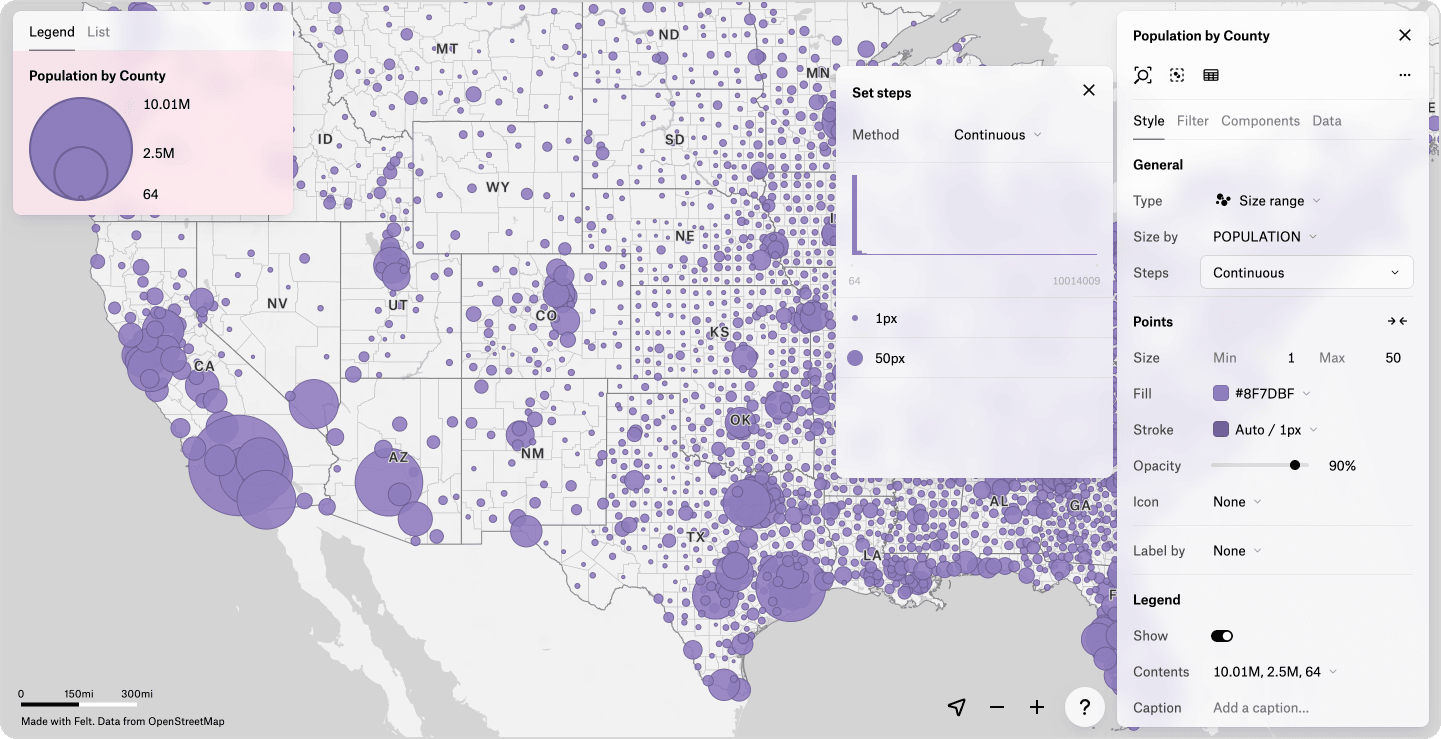
### Size range
A Size range style makes points larger or lines wider as a numeric attribute's value increases. For example, use larger points for cities with larger populations.
1. Set **Type** to **Size range** and select the attribute next to **Size by**.
2. In the **Points** or **Lines** section, set the smallest and largest **Size**.
3. Optional: Click the **Steps** field to set the classification method. See [Classification methods](#classification-methods).
### Heatmap
A Heatmap style shows where points are concentrated, shading areas from low to high density. Every point counts equally. Use **Color** for the gradient, **Point size** for how far each point spreads, and **Intensity** for how quickly areas reach the highest color.
### H3
{% hint style="success" %}
Available on the Business and Enterprise plans. [Compare plans](https://felt.com/pricing#compare)
{% endhint %}
An H3 style groups points into hexagons, which helps when there are too many points to read one by one. In **Color by**, choose a point count or an attribute's sum, average, minimum, or maximum. Use **Resolution** to set the hexagon size and **Scale** to keep the size fixed or change it with zoom. Popups show each hexagon's statistics. On a filtered layer, H3 values are estimates. See [Filter layers](/layers/filter-layers.md).
## Customize colors
Any color in the style editor can be your own. Click a color, such as **Fill** or a category's swatch, to open the color picker. Select a swatch, pick a color in the color field, or enter a value. Switch the value between Hex, HSL, and RGB with the menu next to it.
For Categories, Color range, Heatmap, and H3, a palette sets the colors:
* To change the palette, click the **Fill** or **Color** field and select one. Click **Reverse colors** at the bottom of the list to flip it.
* To change one category's color, click the **Showing** field, then click the category's swatch.
* To change a class's color in a Color range, click the **Steps** field, then click the class's swatch. With the **Continuous** method, click **Add color** to add a color to the gradient, or hover over a color and click **Remove**.
After you change a palette's colors, the palette shows as **Custom**. To use colors stored in your data, such as a column containing `#FF5733`, see [Color based on an attribute](/styling/advanced-styling-fsl.md#color-based-on-an-attribute).
## Classification methods
A classification method splits a numeric attribute's values into classes for a Color range or Size range style. Set it under **Method** in the **Steps** field.
| Method | How it makes classes |
| ------------------- | ---------------------------------------------------------------------------- |
| Continuous | No classes: colors or sizes change in proportion to each value. The default. |
| Equal intervals | Each class covers the same range of values. |
| Quantiles | Each class holds the same number of features. |
| Standard deviations | Classes by distance from the mean, for bell-curve data. |
| Geometric intervals | Class widths grow by a constant factor, for skewed data. |
| Jenks | Natural breaks that keep similar values together. |
| Manual | You enter the break values. |
## Style each category or class
Give one category or class its own icon, size, stroke, or label color in a Categories, Color range, or Size range style. For example, show each type of point of interest with its own icon, or give the highest class a thicker outline so it stands out.
1. Click the heading of the geometry section (**All Points**, **All Lines**, or **All Polygons**) to open its menu.
2. Select the category or class.
3. Change its settings. They apply only to that category or class.
## Style multiple layers at once
Select several layers in the legend to style them together: give related layers the same color or label style, or turn off popups or legends for many layers in one step.
1. In the legend, **Shift**-click to select a range of layers, or **Cmd**-click (Mac) or **Ctrl**-click (Windows) to add layers one at a time.
2. Change a setting in the style editor. It applies to every selected layer.
A setting the layers don't share shows **Mixed** until you choose a value for all of them. Each layer keeps its own categories, classes, styling attribute, and popup contents.
## Frequently asked questions
Does a Categories style update when my data changes?
Yes. A feature's style updates when its value changes. A new value that isn't in the category list shows as **Other**, or is hidden when **Show other** is off. To color it, add it in the **Showing** field.
Can I copy a style from one layer to another?
Felt has no command to copy and paste styles. Style the layers together, or copy the Felt Style Language (FSL) from one layer's style language editor into the other's. The layers need the same attribute names. See [Advanced styling (FSL)](/styling/advanced-styling-fsl.md).
Does Felt support 3D extrusions or pie chart symbols?
No. Felt styles layers in 2D, and points are circles or icons. To chart a location's values, use a custom HTML popup. See [Custom HTML popups](/styling/popups.md#custom-html-popups).
Can I choose which overlapping point draws on top?
Not within a layer. Move those features to their own layer, and drag that layer above the original in the legend.
---
# Agent Instructions
This documentation is published with GitBook. GitBook is the documentation platform designed so that both humans and AI agents can read, navigate, and reason over technical content effectively. Learn more at gitbook.com.
## Querying This Documentation
If you need additional information that is not directly available in this page, you can query the documentation by asking a question.
Perform an HTTP GET request on the following URL with the `ask` and `goal` query parameters:
```
GET https://help.felt.com/styling/style-vector-layers.md?ask=&goal=
```
`ask` is the immediate question: it should be specific, self-contained, and written in natural language.
`goal` is what the user is ultimately trying to achieve, the reason they need the answer. Sharing it helps GitBook give you a better, more relevant answer. A goal is most helpful when it describes the outcome the user wants rather than restating the question. For example, with `ask=how do I create an API token`, a goal like `automate deployments from our CI pipeline` lets GitBook tailor the answer to that use case.
The response will contain a direct answer to the question and relevant excerpts and sources from the documentation.
Use this mechanism when the answer is not explicitly present in the current page, you need clarification or additional context, or you want to retrieve related documentation sections.