> For the complete documentation index, see [llms.txt](https://help.felt.com/llms.txt). Markdown versions of documentation pages are available by appending `.md` to page URLs; this page is available as [Markdown](https://help.felt.com/tools/measure.md).
# Measure
Measure distances, routes, areas, and travel time on a Felt map.
Right-click the map and open **Measure** to measure distances and areas. Measure a straight line, a flight path, or a route by car, bike, or on foot, outline a polygon or circle to get its area and perimeter, or see the area you can reach in a set time. Results show in US or metric units, and you can switch one measurement to acres, hectares, or other units. Anyone who can open the map can measure in view or edit mode. To measure the selected annotations or layer feature, press **M**. With nothing selected, **M** starts measuring a line.
## Measure a distance or area
1. Right-click the map where you want to start, and open **Measure**. On a phone, tap **+** and open **Measure**.
2. Select a measurement type. The first point appears where you right-clicked.
3. Click the map to add more points. The detail panel shows the running length or area.
4. Click **Done** in the detail panel.
| Type | Measures | Shows |
| ------- | -------------------------------------------------------------------------------------------------------- | --------------------------- |
| Line | A straight-line distance through the points you click | Length |
| Polygon | The area of a shape you outline | Area and perimeter |
| Circle | The area of a circle from its center | Radius, area, and perimeter |
| Route | A route along roads or paths, or a great-circle flight path, the shortest route over the Earth's surface | Length |
For a route, click **Drive**, **Bike**, **Walk**, or **Flight** in the detail panel. Route measurements need a desktop browser.
To remove a measurement, select it and click the trash icon in the detail panel.
A measurement is visible only to you and disappears when you leave the map. To keep one, see [Save a measurement](#save-a-measurement).
## Change measurement units
Measurements use US units (feet and miles) or metric units (meters and kilometers). To change the units for all measurements, open the **Felt** menu and click **View** > **Units** > **US** or **Metric**. The setting applies across all your maps and affects only your view.
To show one measurement in a specific unit, such as acres or hectares, select the unit in the dropdown next to its value in the detail panel. Felt uses that unit for your next measurements of the same type.
| Measurement | Units |
| ----------------------------- | ---------------------------------------------------------------------------- |
| Length, radius, and perimeter | Feet, miles, meters, kilometers |
| Area | Square feet, acres, square miles, square meters, hectares, square kilometers |
Felt doesn't measure in nautical miles or yards.
## Measure travel time
{% hint style="success" %}
Available on the Business and Enterprise plans. [Compare plans](https://felt.com/pricing#compare)
{% endhint %}
The Travel time measurement shows the area you can reach from a point by car, bike, or on foot. Right-click the map where you want to start, open **Measure**, and select **Travel time**. In the detail panel, click **Drive**, **Bike**, or **Walk**, and set the minutes in **Time**, from 1 to 120. The detail panel shows the area. Travel time needs a desktop browser. For a layer of travel-time areas around many places, see [Spatial analysis](/analysis-and-dashboards/spatial-analysis.md#create-travel-time-areas).
## Save a measurement
Saving a measurement needs Contribute or Edit access to the map. A saved measurement becomes an annotation that everyone with access to the map can see. In edit mode, select the measurement, click **Add as** in the detail panel, and select **Annotation**. Felt stores the measured value as an attribute, such as `Area: 5.00 mi²`.
Annotations can also show their own length or area on the map as you draw them. See [Edit annotations](/annotations/edit-annotations.md).
## Layer breakdown
{% hint style="success" %}
Available on the Business and Enterprise plans. [Compare plans](https://felt.com/pricing#compare)
{% endhint %}
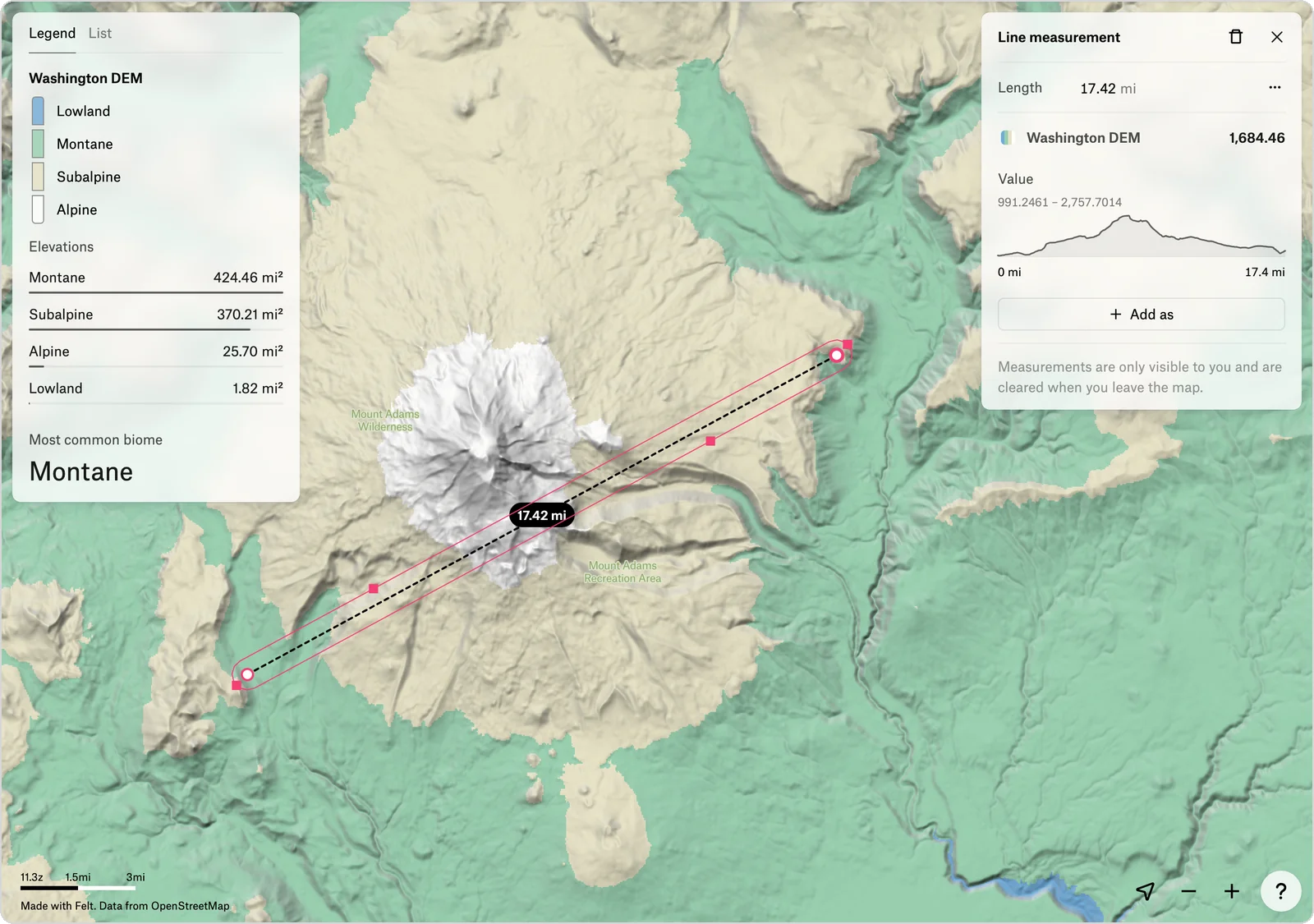
The layer breakdown in the Measure tool shows what's inside a measured shape. Under the measured value, the detail panel lists each visible layer the shape reaches:
* A vector layer shows how many of its features touch a Polygon or Circle measurement.
* A raster layer shows the average value inside the shape, or the most common value for a categorical style.
To add a chart or the sum of an attribute's values, hover over the layer's section and click **Add component**. See [Dashboards](/analysis-and-dashboards/dashboards.md).
## Profile a raster along a line
{% hint style="success" %}
Available on the Business and Enterprise plans. [Compare plans](https://felt.com/pricing#compare)
{% endhint %}
An elevation profile charts a raster's values along a measured path, such as the elevation along a trail. You can create a profile for any raster band with the Measure tool.
1. Measure a **Line** or a **Route** across the raster layer.
2. In the raster layer's section of the detail panel, click **Add component** and select **Line chart**. The chart plots the value against distance along the line.
Hover over the chart to read a value and see its location on the line. Where the raster has no data, the profile leaves a gap.
---
# Agent Instructions
This documentation is published with GitBook. GitBook is the documentation platform designed so that both humans and AI agents can read, navigate, and reason over technical content effectively. Learn more at gitbook.com.
## Querying This Documentation
If you need additional information that is not directly available in this page, you can query the documentation by asking a question.
Perform an HTTP GET request on the following URL with the `ask` and `goal` query parameters:
```
GET https://help.felt.com/tools/measure.md?ask=&goal=
```
`ask` is the immediate question: it should be specific, self-contained, and written in natural language.
`goal` is what the user is ultimately trying to achieve, the reason they need the answer. Sharing it helps GitBook give you a better, more relevant answer. A goal is most helpful when it describes the outcome the user wants rather than restating the question. For example, with `ask=how do I create an API token`, a goal like `automate deployments from our CI pipeline` lets GitBook tailor the answer to that use case.
The response will contain a direct answer to the question and relevant excerpts and sources from the documentation.
Use this mechanism when the answer is not explicitly present in the current page, you need clarification or additional context, or you want to retrieve related documentation sections.