> For the complete documentation index, see [llms.txt](https://help.felt.com/llms.txt). Markdown versions of documentation pages are available by appending `.md` to page URLs; this page is available as [Markdown](https://help.felt.com/upload-anything/urls/vector-tiles.md).
# External vector tiles
Add TileJSON, PMTiles, or tile template URLs to a Felt map as streamed vector layers, and style them from the features in view.
External vector tiles load data from another server as you view the map. Felt streams the tiles without copying the dataset, so they suit large or frequently updated data. Felt reads a TileJSON URL, a PMTiles file URL (`.pmtiles`), or a tile template URL ending in `.pbf` or `.mvt` with `{z}`, `{x}`, and `{y}` placeholders. The tile server must allow requests from Felt through cross-origin resource sharing (CORS). Streamed tiles don't count toward processing. See [Plan usage](/plans-and-billing/plan-usage.md).
## Add vector tiles to a map
1. In the toolbar, click **Upload Anything**  > **From URL**.
2. Paste the vector tile URL. Felt shows *Adding as vector tiles*.
3. Click **Next**. Felt fills in **Min zoom level**, **Max zoom level**, the bounds, and the tileset's layer IDs, when the tileset provides them.
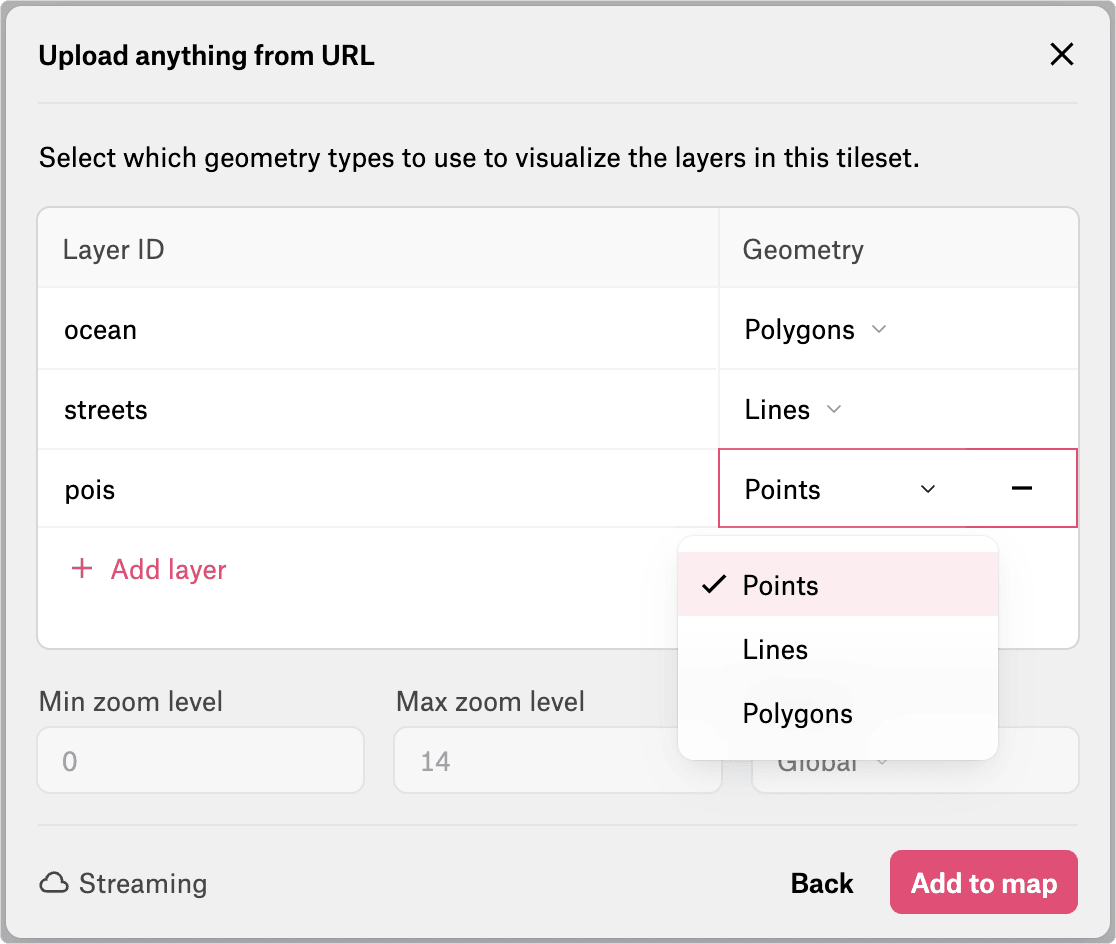
4. For each layer you want, enter or confirm the **Layer ID** used in the tile source, and select its **Geometry**: **Points**, **Lines**, or **Polygons**. Remove the layers you don't want.
5. Click **Add to map**. Each tileset layer appears in the legend as its own layer.
A tile template URL doesn't list its layers, so enter the exact layer IDs used in the tiles. If the tiles don't load, check that the URL is public, that the server allows CORS requests, and that the layer IDs match.
{% hint style="warning" %}
External vector tile layers don't have a table, statistics, filters, or dashboard components, and some classification methods aren't available.
{% endhint %}
## Style external vector tiles
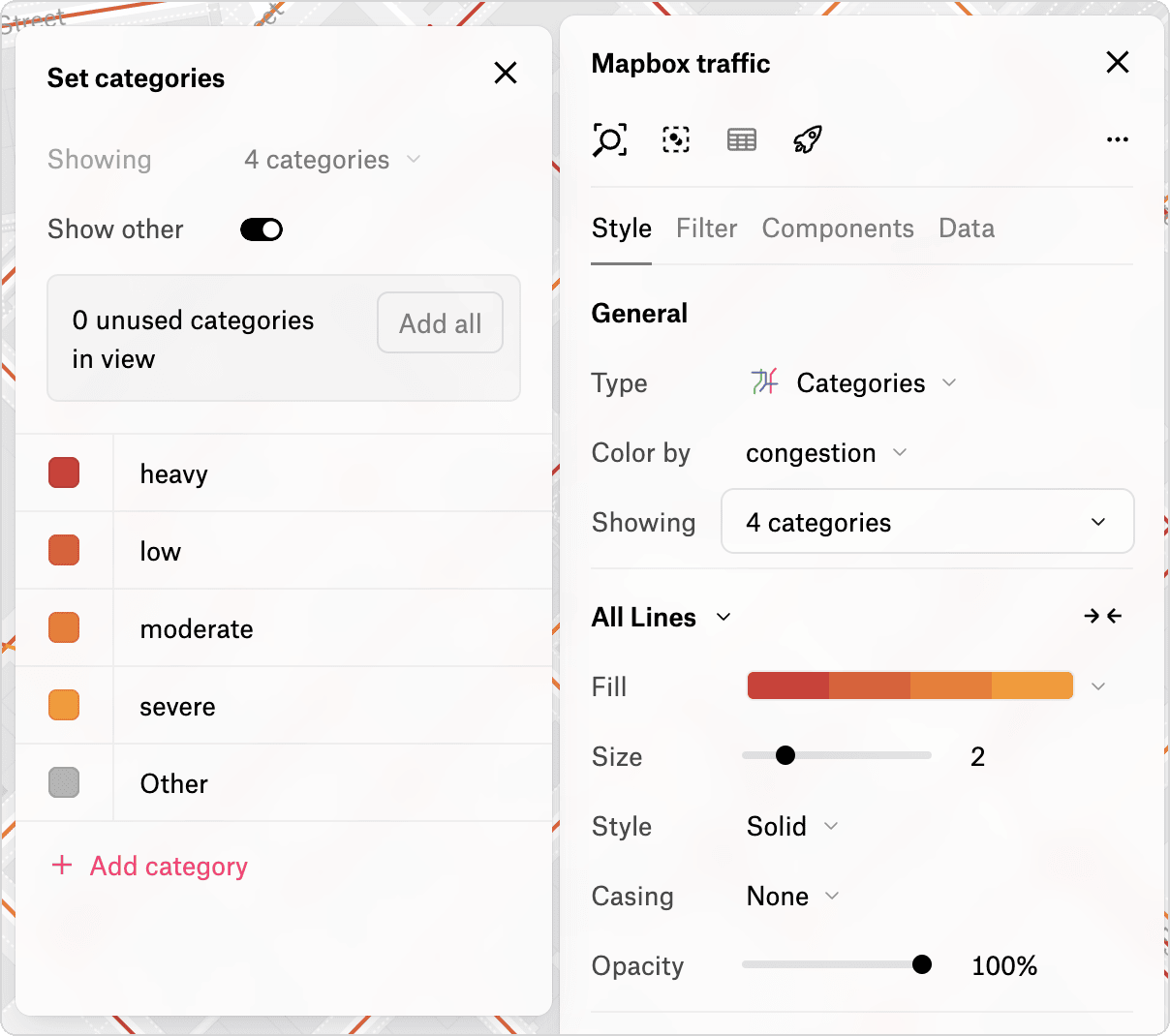
External vector tile layers stream from a remote server, so Felt loads attribute values only from the features in the current view. When you style by an attribute, click **Add all** in the **Set categories** panel, or **Set as range** in the **Set steps** panel, to load the values in view. To include more values, zoom or pan to show more features, and then click the same button again. For the rest of the styling steps, see [Style vector layers](/styling/style-vector-layers.md).
---
# Agent Instructions
This documentation is published with GitBook. GitBook is the documentation platform designed so that both humans and AI agents can read, navigate, and reason over technical content effectively. Learn more at gitbook.com.
## Querying This Documentation
If you need additional information that is not directly available in this page, you can query the documentation by asking a question.
Perform an HTTP GET request on the following URL with the `ask` and `goal` query parameters:
```
GET https://help.felt.com/upload-anything/urls/vector-tiles.md?ask=&goal=
```
`ask` is the immediate question: it should be specific, self-contained, and written in natural language.
`goal` is what the user is ultimately trying to achieve, the reason they need the answer. Sharing it helps GitBook give you a better, more relevant answer. A goal is most helpful when it describes the outcome the user wants rather than restating the question. For example, with `ask=how do I create an API token`, a goal like `automate deployments from our CI pipeline` lets GitBook tailor the answer to that use case.
The response will contain a direct answer to the question and relevant excerpts and sources from the documentation.
Use this mechanism when the answer is not explicitly present in the current page, you need clarification or additional context, or you want to retrieve related documentation sections.