> For the complete documentation index, see [llms.txt](https://help.felt.com/llms.txt). Markdown versions of documentation pages are available by appending `.md` to page URLs; this page is available as [Markdown](https://help.felt.com/administration/manage-members.md).
# Manage members
Invite and remove workspace members in Felt. Manage access and seats, and keep a departing member's maps and data.
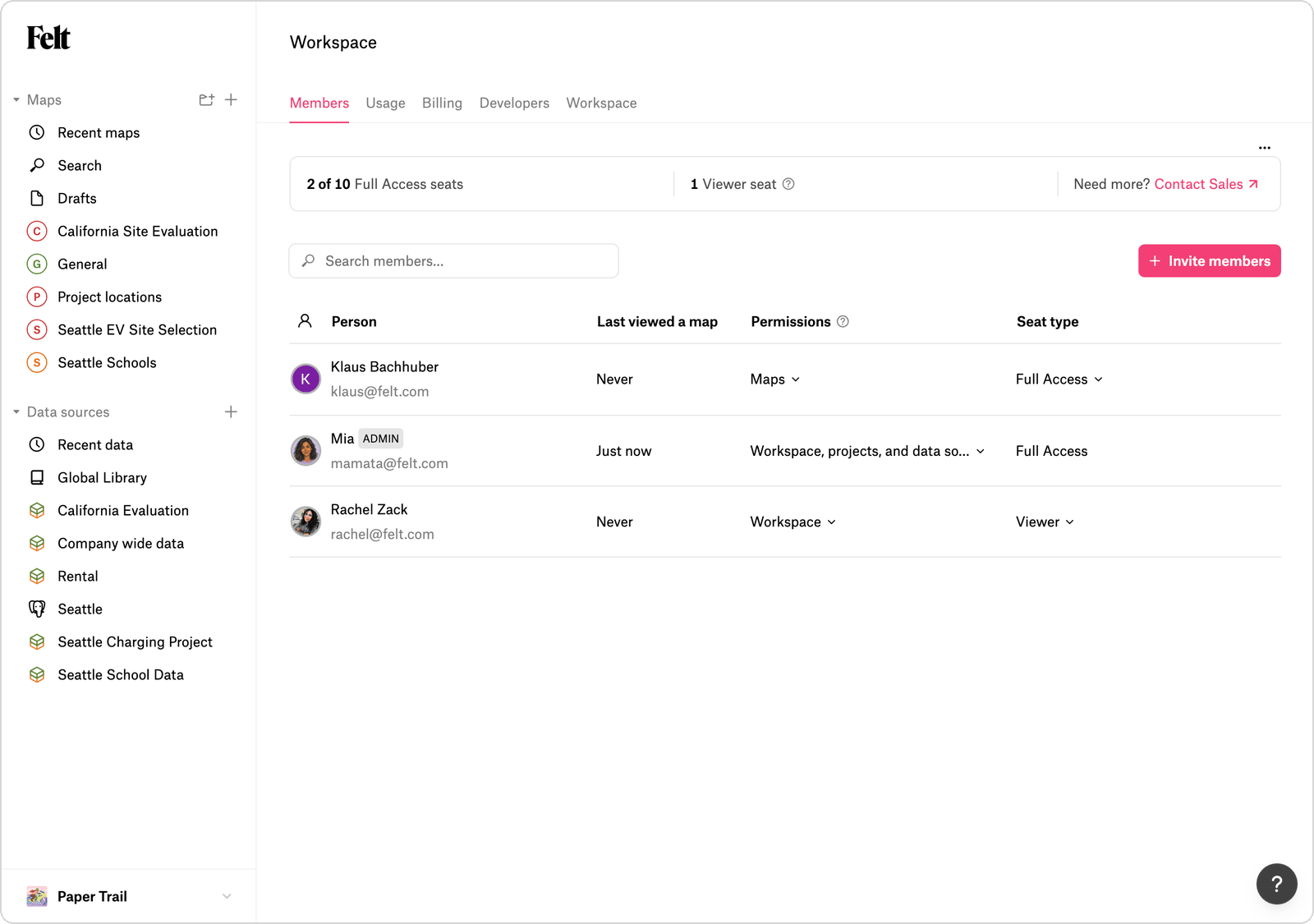
Bring people into your workspace, decide what each person can do, and keep their work when they leave. It all happens on the **Members** tab in workspace settings, where every member can see who else is in the workspace.
## Invite members
1. Click your workspace name in the sidebar to open the workspace menu.
2. Click **Invite members**.
3. Enter the email addresses, separated by commas.
4. Select their access: **Admin**, **Edit**, **Contribute**, or **View**.
5. Click **Send invites**. Each person gets an email with a **Join workspace** link. Their invitation stays pending on the **Members** tab until they join.
People new to Felt can create an account from the invitation email. People you invite with Admin, Edit, or Contribute access take a seat, and people with View access are viewers. If the workspace is out of seats, Felt asks you to add more before the invitation goes out. At the viewer limit, you can't invite more viewers. See [Seats and viewers](/plans-and-billing/seats-and-viewers.md).
You can also invite people from a project's or map's **Share** menu. They get access to that project or map without joining the workspace. Inviting someone with Contribute or Edit access to a map or project, Project admin access to a project, or Edit or Source admin access to a data source gives them a seat, even if they're a viewer in the workspace. See [Share a map](/share/share-a-map.md).
## Workspace permissions
A member's workspace access sets what they can do across the workspace, including the access they inherit in projects open to the workspace. Their access to a specific project, map, or data source can be higher. See [Permissions](/administration/permissions.md).
To open the **Members** tab, click your workspace name in the sidebar, click **Workspace settings**, then click **Members**. The **Seat type** column shows whether each member has a seat. The **Permissions** column shows their workspace access and the projects, maps, and data sources they're invited to.
### Change a member's access
Changing a member from Edit or Contribute to View access frees their seat. Their access to projects, maps, and data sources in the workspace drops to View too.
1. On the **Members** tab, click the member's entry in the **Seat type** column.
2. Select **Seat** for Edit access or **Viewer** for View access. The change takes effect right away.
You can't change your own access. To reassign a workspace seat, change one member to **Viewer** and another to **Seat**. To give Contribute access to the workspace, or to change a member's access to one project, map, or source, click their entry in the **Permissions** column, then select a new access level next to that item.
### Grant or remove Admin access
Admin access lets a member manage the workspace, its members, and billing. Admins need a seat.
1. On the **Members** tab, click the member's entry in the **Seat type** column.
2. Click **Grant Admin access**. If the member is a viewer, Felt asks you to confirm that you want to give them a seat.
3. If Felt asks, click **Give a seat**. The member now has Admin access and a seat.
To remove Admin access, click **Remove Admin access** in the same menu. A workspace always keeps at least one admin.
## Remove a member
Removing a member takes away their access to the workspace and everything in it. They keep their Felt account and any other workspaces they belong to.
{% hint style="danger" %}
On the Free plan, removing a member deletes their drafts. Content in shared projects stays. Ask the member to move any drafts you want to keep into a project before removing them.
{% endhint %}
1. On the **Members** tab, click the member's entry in the **Seat type** column.
2. Click **Remove all access…**. A dialog says what happens to the member's drafts.
3. Click **Remove member**. Their seat becomes free for someone else.
Removing someone in your identity provider doesn't remove them from Felt. See [SSO](/administration/sso.md).
### Keep a departing member's maps and data
On a paid plan, a removed member's content is kept. The admin who removed them becomes the owner of their maps and data sources, and maps in projects stay where they are. Their drafts move to a new private project named for them, such as "Ana's Drafts". The removing admin owns that project, and the workspace's other admins get Edit access to it.
Private projects the member managed stay in the workspace with their maps. If the member was a project's only Project admin, the admin who removed them becomes its Project admin.
When a member leaves on their own, their content goes to the workspace admin who most recently opened the workspace.
## Troubleshooting invitations
### Invitation fails with "Invite limit reached"
Each person can send up to 100 invitations in 24 hours. To invite more people at once, email .
### An invited person can't find the workspace
An invitation is tied to the email address you entered. Ask the person to log in or sign up with exactly that address, and to check their spam folder for the invitation. To use a different address, send a new invitation to that address.
---
# Agent Instructions
This documentation is published with GitBook. GitBook is the documentation platform designed so that both humans and AI agents can read, navigate, and reason over technical content effectively. Learn more at gitbook.com.
## Querying This Documentation
If you need additional information that is not directly available in this page, you can query the documentation by asking a question.
Perform an HTTP GET request on the following URL with the `ask` and `goal` query parameters:
```
GET https://help.felt.com/administration/manage-members.md?ask=&goal=
```
`ask` is the immediate question: it should be specific, self-contained, and written in natural language.
`goal` is what the user is ultimately trying to achieve, the reason they need the answer. Sharing it helps GitBook give you a better, more relevant answer. A goal is most helpful when it describes the outcome the user wants rather than restating the question. For example, with `ask=how do I create an API token`, a goal like `automate deployments from our CI pipeline` lets GitBook tailor the answer to that use case.
The response will contain a direct answer to the question and relevant excerpts and sources from the documentation.
Use this mechanism when the answer is not explicitly present in the current page, you need clarification or additional context, or you want to retrieve related documentation sections.